
If you’ve recently received an email about a critical Kokopay plugin security update, you’re probably wondering — what exactly is this, should I be worried, and what do I do next?
You’re not alone. And the fact that you’re reading this before doing anything is already a smart move.
Here’s the honest answer: this update matters more than most people realise — and how you handle it can make the difference between a smooth-running store and a serious headache.
Table of Contents
ToggleWhat Is the Kokopay Plugin?
For those who may be unfamiliar, Kokopay is a payment plugin built specifically for WooCommerce — the world’s most widely used eCommerce platform for WordPress.
Kokopay integrates payment processing directly into your WooCommerce store, allowing your customers to complete transactions seamlessly at checkout. Like all plugins that handle payments and customer data, it sits at one of the most sensitive points of your entire online business.
That’s exactly why security updates for a plugin like this should never be ignored.
What Is This Security Update Email About?
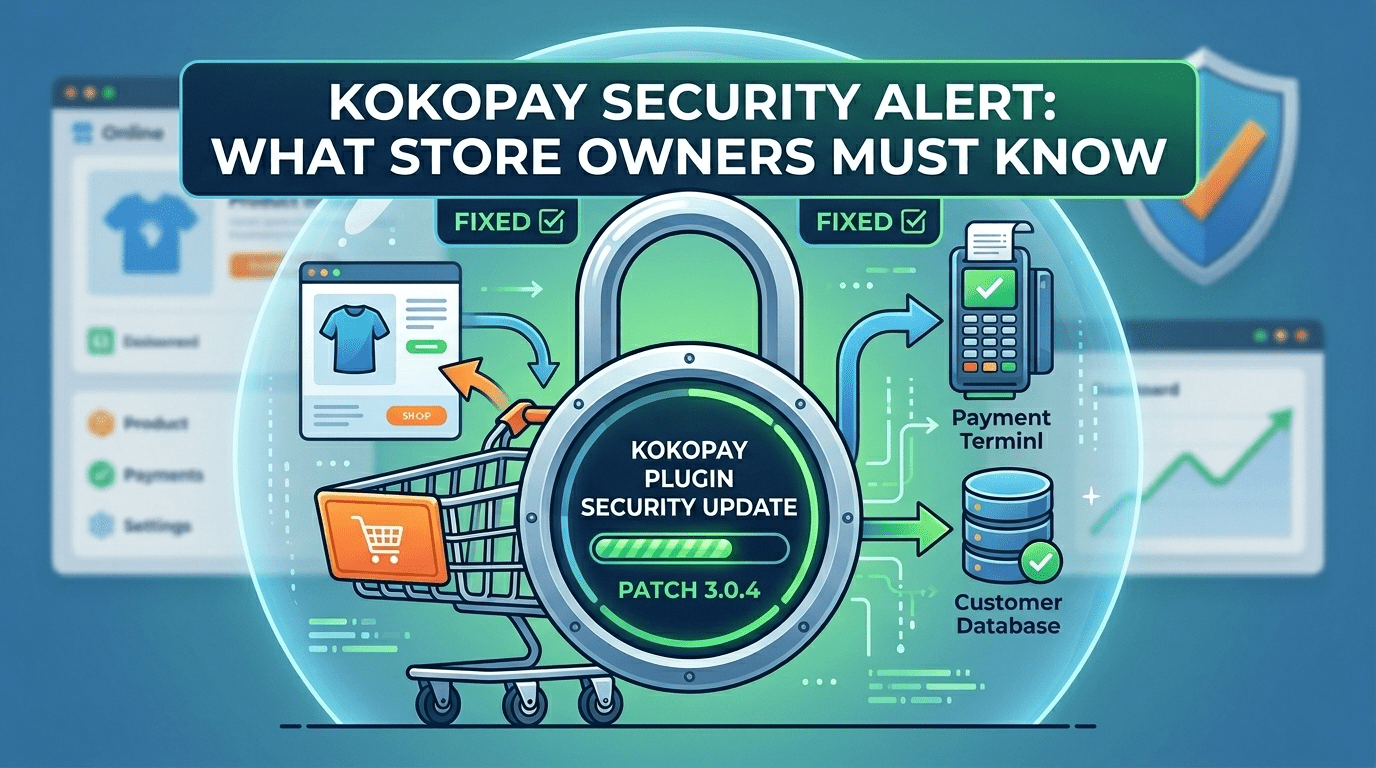
The email you received is informing you that the Kokopay team has identified and patched critical security vulnerabilities in their plugin, and has released version 3.0.4 to address them.
According to the update notice, this new version includes:
- Critical security fixes to protect your store and customer data
- Enhanced plugin stability and performance
- Full compatibility with the latest WooCommerce standards
In plain terms — they found weaknesses in the plugin that could potentially be exploited, and they’ve fixed them. Now they need you to install the fix.
Why Should You Take This Seriously?
A payment plugin handles some of the most sensitive parts of your store. Here’s what’s at risk if you leave an unpatched vulnerability sitting on your site:
🔓 Customer Payment Data at Risk
Kokopay sits right at your checkout. Any vulnerability in that layer could expose transaction data, customer details, or open a door for payment interception. That’s not a small risk — that’s a potential legal and financial disaster.
💸 Silent Revenue Theft
Some attacks don’t take your store down. They quietly run in the background — skimming data, redirecting payments, or injecting malicious code — while your store looks perfectly normal. By the time you notice, the damage is already done.
📉 Google Blacklisting
If your compromised site starts serving malware or suspicious scripts, Google can remove your store from search results entirely. Recovering SEO rankings after that is a long, painful road.
⚠️ Loss of Customer Trust
Once word gets out that a store’s checkout was compromised, customers don’t come back. In eCommerce, trust is your most valuable asset
“Can’t I Just Update It Myself?”
Technically, the update process sounds simple: deactivate the old plugin, delete it, upload and install the new version 3.0.4, and reactivate. A few steps, done.
But here’s where it gets tricky.
Kokopay doesn’t work in isolation. It’s deeply connected to your WooCommerce setup — your checkout flow, your order processing, your payment gateway configuration. A plugin update at this level can interact with:
- Your WooCommerce version and settings
- Your active theme
- Other installed plugins (shipping, tax, subscriptions, etc.)
- Any custom code that was previously added to your store
- Your hosting server environment
One compatibility issue during the update can break your checkout entirely — meaning customers can’t complete purchases. Every minute your checkout is down is lost revenue.
And if you don’t have a recent full backup before you start? You could lose order data, custom configurations, and settings that took a long time to set up correctly.
This isn’t about scaring you. It’s about being real with you.
What You Should Actually Do?
✅ Step 1: Don’t Ignore It — But Don’t Rush Either
The update is important, but doing it carelessly creates new problems. Take a breath, read this through, and approach it the right way.
✅ Step 2: Verify the Email Is Legitimate
Before anything else — make sure the email genuinely came from the Kokopay team. Cybercriminals sometimes send fake “security update” emails that actually install malware when you follow the instructions. Check the sender’s email domain carefully and cross-reference with any official Kokopay communication channels.
✅ Step 3: Back Up Your Entire Store First
A full backup — database and all files — is non-negotiable before any plugin update. If anything goes wrong, you need to be able to restore your store to exactly how it was.
✅ Step 4: Get a Qualified Developer to Handle It
This is the part most store owners skip — and it’s the most important one.
A qualified WooCommerce developer will:
- Verify the update file is authentic and safe to install
- Take a complete backup before touching anything
- Test the update on a staging environment (a copy of your live site) first
- Check for compatibility issues with your specific setup
- Apply the update to your live site only after confirming it works correctly
- Verify your checkout, payments, and order flow are all functioning properly post-update
Think of it like servicing the brakes on your car. You could try it yourself. But when it’s the thing that keeps everything from crashing, most people wisely call a professional.
Need Help Applying the Kokopay Update Safely?
Whether you’re worried about compatibility, you don’t want to risk your checkout going down, or you simply don’t have the time to deal with it — Savinu LABS can handle the entire process for you, from backup to testing to live deployment.